
Product Settings
The Settings section of the Products screen turns two storefront features on or off: product comparison and search by image. Both are on in a new store, and they apply to the whole store.
- Go to Configure >> Catalog >> Products.
- In Settings, switch Compare options on or off.
- Switch Image Search Option on or off.
- Click Save Configuration.
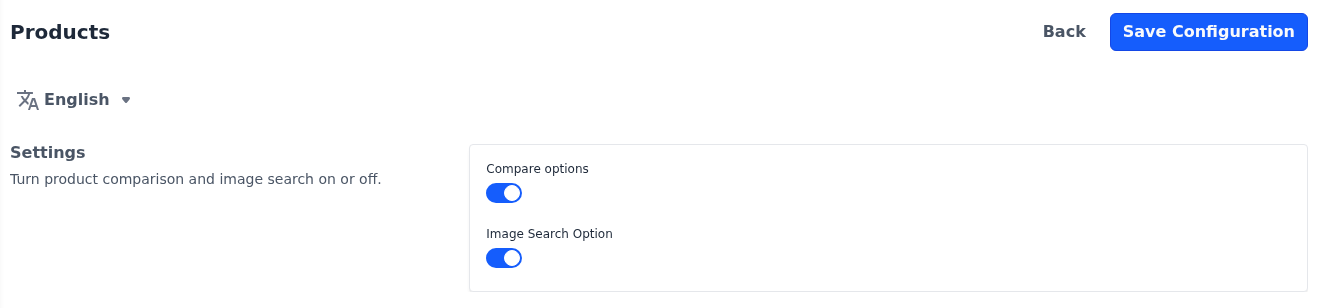
Compare options: Shows the compare icon in the storefront header and a compare button on product cards and product pages, so shoppers can compare products side by side. Which attributes appear on the compare page is set on each attribute with Attribute is comparable; see Product Attributes.
Image Search Option: Shows a camera icon in the storefront search bar, so shoppers can search by uploading a photo. The photo is recognized in the shopper's browser, or by an AI model when AI image search is switched on under Generative AI (Magic AI).
The Products screen also holds the Storefront, Product View Page, Review, Social Share, Cart View Page, Attribute and Omnibus Price Disclosure sections. The wishlist is turned on or off under Customer Settings.
Differences in Bagisto 2.4
In Bagisto 2.4, the Products screen also has Small Image, Medium Image and Large image sections, which set the width and height of product images and the placeholder shown when a product has no image. Bagisto 2.5 doesn't have these settings: image sizes and the placeholder come from your storefront theme.